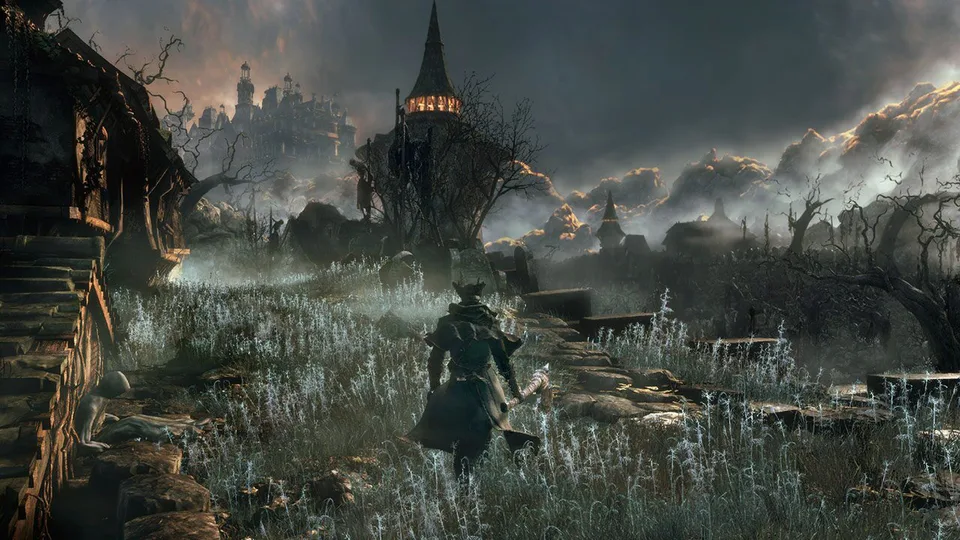
Discover the best bloodborne shadps4 settings to run FromSoftware's masterpiece at stable 60 FPS and 4K resolution on PC. Get optimized performance tips.
Published: Bloodborne Wiki Editorial Team
Table of Contents
Introduction to Running Bloodborne on PC
For years, experiencing FromSoftware's legendary gothic masterpiece beyond its native console hardware felt like an impossible dream. However, recent breakthroughs in emulation have changed everything, making bloodborne shadps4 settings a hot topic among PC gamers eager to dive back into Yharnam. Optimizing your emulator correctly is essential because improper configurations can lead to severe stuttering, physics glitches, or sudden crashes that ruin your hunt.
Achieving a smooth gameplay experience requires navigating various global settings, game-specific tweaks, and community-made patches. Whether you are aiming for a high-refresh-rate 1080p setup or pushing your hardware to the absolute limit with 4K resolution, getting the configuration right makes all the difference. In this comprehensive guide, we will break down the ideal parameters, necessary hardware requirements, and essential performance mods to elevate your PC experience.
Essential Hardware Requirements and Initial Setup
Before tweaking your bloodborne shadps4 settings, you must ensure your PC meets the baseline hardware specifications required for stable emulation. According to community reports and developer testing, running the game smoothly demands adequate system resources to avoid memory leaks and severe frame drops.
If your system falls short of these requirements, you may encounter heavy stuttering or long loading times. The initial setup involves downloading the correct emulator build, installing Visual C++ runtimes, and properly extracting your game files, update packages, and DLC using the built-in PKG extractor.
Ensure your PC has at least 16 GB of RAM and a dedicated GPU with 4 GB of VRAM.
Install the necessary Visual C++ runtimes using the provided batch file in your launcher folder.
Extract your game PKG, update, and DLC files sequentially to prevent file corruption.
Configure your active gamepad controller in the launcher settings and map buttons manually if needed.
Recommended Global and Game-Specific Settings
Once your files are extracted, configuring the emulator parameters correctly is crucial for stability. Players often experience crashes if certain experimental options are left unchecked. According to player experience, disabling trophy pop-ups is vital unless you are running a jailbroken console environment, as these options cause unexpected glitches on standard PC setups.
Below is a comparison table outlining the recommended configuration differences between global settings and game-specific tweaks for optimal performance.
Configuration Area
Recommended Setting
Purpose / Benefit
Log Type
Async
Reduces stuttering and improves asynchronous asset loading.
Full Screen Mode
Borderless / Windowed
Prevents display scaling issues and allows smooth alt-tabbing.
Trophy Pop-ups
Disabled
Prevents random crashes caused by emulated system hooks.
V-Sync
No VSYNC / Disabled
Uncaps frame potential and reduces input lag for smoother combat.
Shader Cache
Enabled
Eliminates stuttering caused by compiling shaders during combat.
Applying Performance Patches and Mod Managers
To truly maximize your framerate and fix graphical anomalies, applying community patches is mandatory. Without the vertex explosion fix, players frequently report severe geometry stretching that breaks the visual presentation of Yharnam. Additionally, utilizing the mod manager allows you to integrate community-made performance boosters seamlessly.
Vertex Explosion Fix
Essential mod available via NexusMods or the built-in mod downloader that prevents severe polygon stretching and geometry glitches on character models and environments.
60 FPS & Uncapped Patches
Unlocks the framerate beyond the native 30 FPS limit. Note that if your hardware cannot maintain a stable 60 FPS, you should cap the game to 30 FPS to prevent slow-motion game speed bugs.
Here is a quick checklist of the mandatory patches you should enable in the emulator patch repository before launching your session.
[ ] Enable Skip Intro to bypass opening logos.
[ ] Enable Chromatic Aberration and Motion Blur toggles based on personal preference.
[ ] Turn on Model LOD adjustments for better rendering performance.
[ ] Apply the 60fps patch or 30fps cap depending on your GPU capabilities.
[ ] Disable HTTP requests to prevent background network overhead.
Managing Resolutions and Save Backups
Pushing the emulator to higher resolutions like 1440p or 4K requires adjusting additional memory allocation parameters. For 1440p gaming, allocating approximately 4,000 MB is recommended, while true 4K resolution demands at least 8,000 MB of additional memory allocation alongside a powerful GPU with 8 GB or more VRAM. If you experience unexpected DirectX errors, restarting your PC or lowering the resolution patch is advised.
Furthermore, emulator crashes can occasionally corrupt your progression data. Utilizing the built-in save viewer and backup manager allows you to create manual restore points every few minutes or before risky boss encounters, ensuring your hard-earned progress remains secure throughout your playthrough.
Frequently Asked Questions
What are the best bloodborne shadps4 settings for a stable 60 FPS?
To achieve a stable 60 FPS, use a modern stable build, enable the asynchronous log type, disable V-Sync, turn on shader caching, and apply the community 60 FPS patch alongside the vertex explosion fix.
Why is my game running in slow motion?
Game slowdown occurs when your hardware cannot maintain the target framerate set by the patch (such as 60 FPS). To fix this, lower your resolution or switch back to the stable 30 FPS patch so the game speed matches normal timing.
Do I need a powerful PC to run Bloodborne on shadPS4?
Yes, emulation requires robust hardware. You will need at least 16 GB of system RAM, a dedicated graphics card with 4 GB of VRAM (preferably 8 GB for higher resolutions), and a capable multi-core CPU.